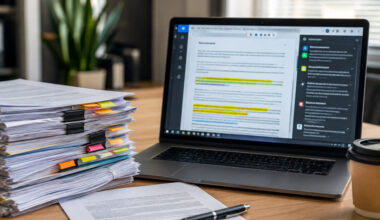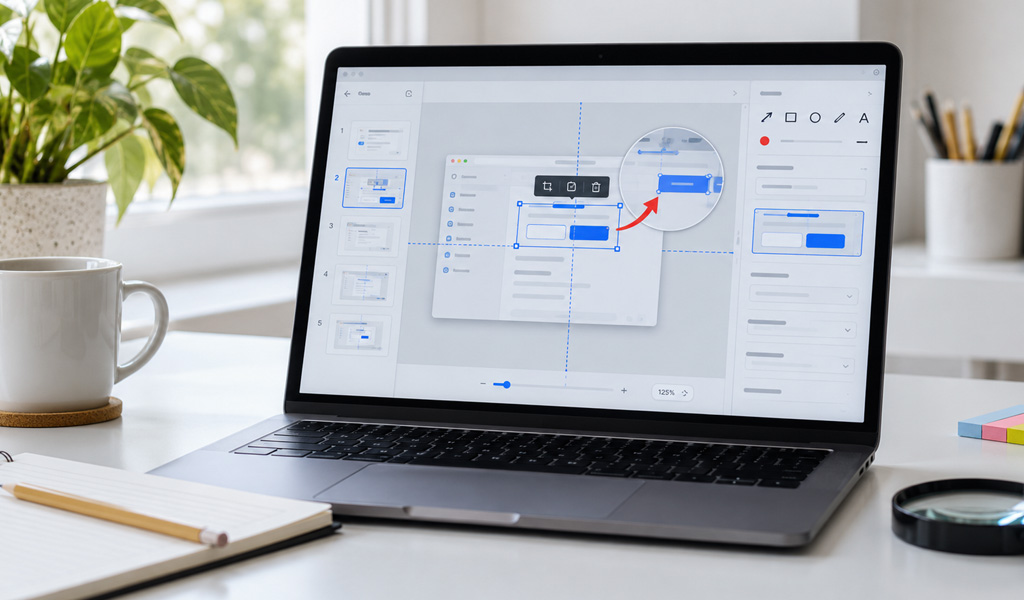
A screenshot that no longer matches the software does more harm than no screenshot at all. The reader trusts the picture, clicks where it points, and finds nothing there. In fast-moving software, images date quickly, and a guide full of old screens loses credibility. A step by step guide creator keeps the pictures accurate by capturing them from the running application and tying every label to the control it marks, so the image and its annotations move with the interface instead of drifting away from it.
Where Screenshot Accuracy Breaks Down
Screens That No Longer Exist
Most inaccurate screenshots come from one of two places. Either the image was taken from an old build, or it was a mockup that never matched the shipped product. A reader following such a guide clicks a button that moved or was renamed, the instructions and the picture disagree, and the reader trusts neither. The gap widens every sprint, because the product keeps moving while the old picture stays put. This is a known problem that documentation style guides address it directly: Google’s developer documentation style guide advises cropping a screenshot to just the relevant control, which “can help future-proof the screenshot if other parts of the UI change” (Google developer documentation style guide).
Labels That Point at the Wrong Thing
An accurate screenshot can still carry an inaccurate label. If a callout arrow drifts off the button it names, the reader looks in the wrong spot. Annotations added by hand in an image editor break this way, because they are burned into the picture at fixed coordinates and have no link to the control beneath them. Move or resize that control, and the arrow stays where it was drawn.
How the Tool Keeps Them Accurate
Capturing from the Live Application
Dr.Explain captures the screen from the running program rather than from a saved image. According to its own feature documentation, the tool “uses algorithms to automatically detect interface elements like buttons, input fields, and menus” and then generates numbered callouts for them, and you can capture an entire window at once or a selected region (Dr.Explain, automatic annotation). Because the capture is of the live application, the image shows the real interface at the moment of capture, so the starting point is accurate by default instead of depending on how carefully someone rebuilt a screen in an editor.
Matching What the User Sees
An accurate capture also means capturing what the user actually sees. Take the screenshot on a system set up like theirs, at a normal display resolution and in the theme the product ships with, and keep it consistent across the guide. The Google style guide makes the consistency point a rule, advising teams to standardize on one operating system for all screenshots in a doc set, and to keep personal information out of the frame by covering it with a solid overlay rather than a blur, which can be reversed (Google developer documentation style guide). Capturing from the running app makes it easy to match the real setup instead of staging it in an editor.
Callouts Anchored to Controls
When Dr.Explain adds a numbered callout, it ties the label to the interface element rather than to a spot on the image. The annotation belongs to the button, the field, or the menu, and the tool’s documentation states that these annotations stay attached to the right elements, so a recapture re-aligns them to the controls that moved instead of leaving arrows stranded. That keeps the image and its labels accurate together, not one without the other.
Keeping a Guide Accurate Over Time
A Recapture Habit for Each Release
Accuracy is less a one-time capture than a short routine tied to each release:
- After a UI change, recapture the screens the change touched, and let the callouts re-align to the moved controls.
- Crop each screenshot to the control it explains, which, following the Google style guide, future-proofs it against changes elsewhere in the interface.
- Spot-check the guide after a release, starting with the screens the most users open.
Pictures the Reader Can Rely On
A guide whose pictures match the product keeps the reader’s trust and reduces the support questions that come from confusion. The accuracy comes from two habits working together: capturing from the live app so the image is right to begin with, and recapturing when the app changes so it stays right. A guide that recaptures with each release stays a reliable reference, while a static screenshot set drifts further from the product every sprint. A step by step guide creator makes both routine, so the screenshots stay true to the software users have in front of them.